
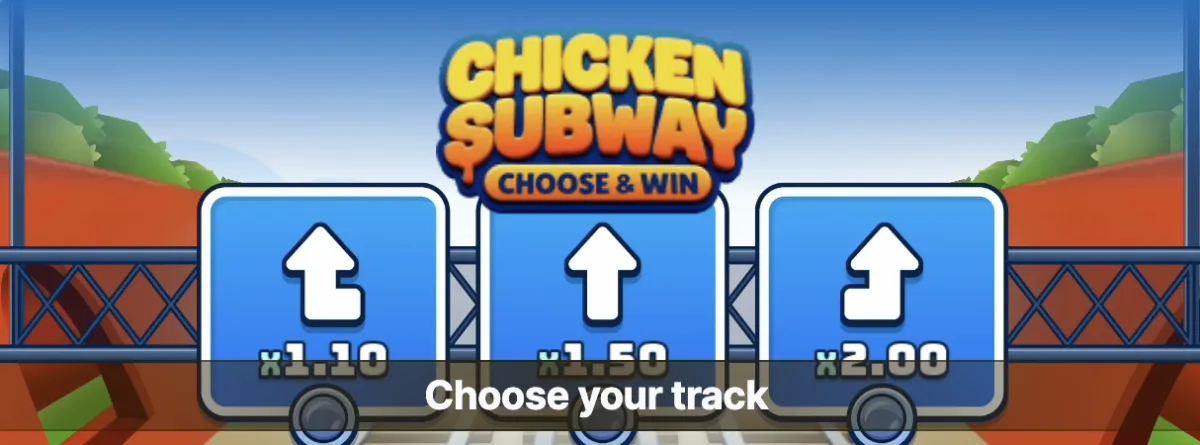
Mobile Setup for Short Subway Sessions
Chicken Subway is a fast game, so the mobile setup should slow the practical decisions down rather than push you into quicker taps. Start by opening the casino in a browser and checking whether the game loads fully before installing anything. If the operator offers an APK, it should be the casino app from the official site, not a separate Chicken Subway file from a download directory. That distinction matters because account security, cashier access, and support all belong to the operator.
Once the game opens, test the parts you will actually use: game search, bet controls, demo switch, cashier link, and responsible-gaming tools. A phone can make the animation feel more immediate, especially during short sessions, so set a stake before the first round and avoid changing it just because the app feels smooth. The best mobile route is the one that keeps the tunnel, balance, and next action clear without hiding the terms that decide whether a bonus is worth using.
The Honest Truth About Chicken Subway Mobile
Chicken Subway is an HTML5 browser-based game built by a casino game provider. You play it through online casino websites or their mobile apps. The game itself runs inside a web browser — there's no native app to install. Think of it like a YouTube video: you don't download a separate app for each video, you watch it through the YouTube platform. Same concept here.
Chicken Subway is normally usable from a mobile browser when the casino platform supports it. The HTML5 game interface is lightweight enough for modern phones, and players do not need a standalone Chicken Subway APK to reach the game.
That said, there are legitimate reasons you might want something more "app-like" on your phone. Maybe you want a home screen icon for quick access, push notifications for casino promotions, or a full-screen experience without the browser address bar. All of that is possible — just not through a standalone Chicken Subway app.
Here are your three real options, ranked from most involved to simplest:
- Casino APK (Android only) — Download the casino's own mobile app, then find Chicken Subway inside it
- PWA shortcut (iOS and Android) — Add the casino website to your home screen for an app-like experience
- Mobile browser (all devices) — Just open the casino website in Chrome or Safari and play
This guide compares the three access paths and flags the security considerations, because downloading APKs from the internet carries real risks that should be understood before proceeding.
Option 1: Android Casino APK Installation
Several casinos that offer Chicken Subway also provide their own Android apps as APK files. These are casino apps — not Chicken Subway apps. You install the casino's app, then find Chicken Subway in their game library. The game itself still runs in a web view inside the app.
Why APK instead of Google Play? Because Google restricts real-money gambling apps in most countries. Casinos distribute their apps as direct APK downloads from their own websites instead. This is legitimate, but it does mean you need to enable a security setting on your phone.
Step-by-Step Installation
Visit the Official Casino Website
Open Chrome on your Android phone and navigate to the casino's website directly. Use the casino's official website or a trusted account link. Do NOT search Google for "casino APK download" — the top results can include fake sites distributing malware. Always type the casino URL directly or use a trusted link.
Find the Mobile App Section
Look for a "Download App," "Mobile App," or Android icon link. It's usually in the site footer, the main menu, or a banner on the homepage. Some casinos show a pop-up on mobile automatically offering the app download. If you can't find it, check the FAQ or contact support.
Enable "Install Unknown Apps"
Before the APK can install, you need to allow your browser to install apps from outside Google Play. The exact path depends on your Android version:
- Android 8.0–12: Settings > Apps > Special Access > Install Unknown Apps > Chrome > Allow
- Android 13+: Settings > Security & Privacy > Install Unknown Apps > Chrome > Allow
- Samsung: Settings > Biometrics and Security > Install Unknown Apps > Chrome > Allow
After installation, turn this setting back off. Leaving it enabled permanently is a security risk — any website could prompt you to install something malicious.
Download and Install the APK
Tap the download button on the casino site. You'll see a browser warning saying "This type of file can harm your device" — this is standard for all APK files, not specific to casino apps. Tap "Download anyway." When the download finishes, tap the notification or open your Downloads folder and tap the APK file. Then tap "Install."
Open the App and Find Chicken Subway
Launch the casino app from your home screen. Log in with your existing account or register a new one. Then search for "Chicken Subway" in the game search bar, or browse to the Choose & Win games category. Tap on Chicken Subway and the game will load inside the app. From here, gameplay is identical to the browser version — same bets, same risk levels, same rules.
For many players, the operator app does not add much over browser play. The main benefit is faster launch and notifications; the tradeoff is extra installation risk and more permission prompts.
Option 2: iOS PWA (Add to Home Screen)
If you're on iPhone or iPad, your best option is a PWA — Progressive Web App. It's a fancy name for a simple concept: you add the casino website to your home screen, and it opens in a full-screen browser window without the Safari address bar. It looks and feels like a native app, but it's just a bookmark with extra features.
This is actually what Apple intended for web apps before native apps existed. Steve Jobs originally wanted the iPhone to run web apps instead of native ones. The technology has improved massively since then, and modern PWAs can cache content offline, send notifications (on iOS 16.4+), and run in full screen.
Why No App Store Listing?
Apple's App Store guidelines are strict about real-money gambling. To list a gambling app, the developer needs gaming licenses for every country where the app is available, age verification systems that meet Apple's standards, and approval from local gambling regulators. Most online casinos — especially those operating under Curacao or similar licenses — don't qualify for App Store distribution in Western markets. That's why you won't find Chicken Subway or most casino platforms on the App Store.
Step-by-Step PWA Installation
Open Safari (Not Chrome)
This is critical: you must use Safari. Chrome, Firefox, and other browsers on iOS do NOT support the "Add to Home Screen" PWA feature. Only Safari can create home screen shortcuts that open as standalone apps. Open Safari and navigate to your casino of choice.
Navigate to the Casino Website
Go to the official casino site — 1Win, Fresh Casino, or whichever platform you use for Chicken Subway. Log in if you want the PWA to remember your session. Some casinos have a dedicated PWA-optimized version of their site that loads faster.
Tap the Share Button
Find the Share icon at the bottom of Safari — it's a square with an upward-pointing arrow. On iPad, it might be in the top-right corner near the address bar. Tap it to open the share sheet.
Select "Add to Home Screen"
Scroll down in the share sheet until you find "Add to Home Screen." If you don't see it, scroll further — Apple sometimes hides it below the fold. Tap it. You can rename the shortcut to something clear, such as "Chicken Subway". Then tap "Add" in the top-right corner.
Launch from Your Home Screen
The casino icon now sits on your home screen alongside your regular apps. Tap it to launch. The site opens in a full-screen window without the Safari toolbar — it looks just like a native app. Navigate to Chicken Subway and play. On a modern iPhone, the full-screen PWA experience can feel close to a native app during gameplay.
One thing to know: Safari can sometimes clear PWA data when your phone runs low on storage. If you get logged out randomly, that's probably why. Just log back in. This happens less on newer iPhones with more storage, so it is worth knowing before relying on the shortcut.
Also, if you're on iOS 16.4 or later, some casino PWAs can send push notifications — but this depends on whether the casino has implemented the Web Push API. Most haven't yet as of March 2026, but it's coming.
Option 3: Play in Your Mobile Browser
Browser play is usually the simplest option. No installation, no APK security warnings, no PWA setup. You just open your browser, go to the casino site, and play Chicken Subway.
Chicken Subway is built with HTML5 and runs entirely in your browser. The game engine is lightweight — it downloads about 2-3 MB of assets on first load, then caches them locally. Subsequent visits load in 1-2 seconds. On a stable 4G connection, the game should not usually need heavy buffering. The game was designed for mobile browsers from the ground up.
How to Get Started
- Open Chrome (Android) or Safari (iOS) on your phone
- Navigate to your casino of choice — if you need a recommendation, check the casino comparison on the homepage
- Log in or create an account
- Search for "Chicken Subway" or browse the Choose & Win games section
- Tap to play — that's it
For the best experience, use a few setup checks:
- Turn your phone to landscape mode — Chicken Subway shows more of the track and the controls are easier to tap
- Use auto-cashout — the Withdraw button is small on mobile, and missed taps can happen. Auto-cashout at a set multiplier eliminates that problem entirely (see the strategies guide for recommended multiplier targets)
- Disable browser notifications — you don't need the casino spamming you with promotional pop-ups while you're trying to concentrate on the game
- Use Wi-Fi when possible — mobile data works fine, but a stable Wi-Fi connection means zero chance of a disconnect costing you a round. And always set auto-cashout as a safety net regardless of your connection
The browser approach has one disadvantage: no home screen icon (unless you manually bookmark it). Compared with APK risk or PWA setup, the extra few seconds of typing the URL is usually the safer tradeoff. If quick access matters to you, just bookmark the casino site — every browser lets you add bookmarks to your home screen or favorites bar.
If you want to try Chicken Subway before committing to a casino account, most platforms offer a free demo mode that doesn't require registration. Just open the casino site, find Chicken Subway, and select "Demo" or "Play for Free."
System Requirements
Chicken Subway is not resource-heavy, but it does need a reasonably modern device and browser. Use these conservative compatibility targets:
| Platform | OS Version | RAM | Storage | Browser |
|---|---|---|---|---|
| Android (Browser) | Android 8.0+ | 2 GB+ | ~50 MB cache | Chrome 90+, Firefox 95+ |
| Android (Casino APK) | Android 8.0+ | 3 GB+ | 80-150 MB | Built-in WebView |
| iOS (Safari/PWA) | iOS 15+ | 2 GB+ | ~50 MB cache | Safari 15+ |
| Windows (Desktop) | Windows 10+ | 4 GB+ | ~50 MB cache | Chrome 90+, Edge 90+, Firefox 95+ |
| macOS (Desktop) | macOS 12+ | 4 GB+ | ~50 MB cache | Safari 15+, Chrome 90+ |
A few practical notes:
- Devices with less than 2 GB RAM may experience frame drops during Choose & Win animations
- The casino APK itself takes 80-150 MB depending on the casino, but Chicken Subway's game assets within it are still only about 3 MB
- Older Android devices (pre-2018) sometimes have outdated WebView components that cause rendering glitches. Updating Android System WebView from the Play Store usually fixes this
- On iOS, there's no way to update Safari independently of iOS — if you're stuck on iOS 14, you may have issues with some game features
If your device meets these requirements and the game still doesn't load properly, check the troubleshooting section below.
Mobile vs Desktop: Which Is Better for Chicken Subway?
Mobile and desktop use differ mainly by ergonomics. Here is the practical comparison:
| Factor | Mobile | Desktop |
|---|---|---|
| Screen Size | Smaller viewport; landscape mode recommended for full track visibility | Full track visible at all times; easier to monitor multiplier and controls simultaneously |
| Controls | Touch-based; Withdraw button can be tricky to tap precisely under pressure | Mouse click; larger target area, more precise for manual cashout timing |
| Performance | Smooth on modern phones (2020+); occasional frame drops on budget devices during Choose & Win | Usually smooth on current desktop browsers |
| Battery Impact | Moderate drain; expect about 8-10% per hour of active play on most phones | Not applicable (plugged in) |
| Data Usage | ~1-2 MB per session after initial cache; minimal ongoing bandwidth | Same data usage; no difference in network requirements |
| Convenience | Play anywhere, anytime — couch, commute, waiting room | Tied to desk; less spontaneous but more comfortable for long sessions |
| Multi-tasking | Can't easily switch between tabs without risking game state | Easy to monitor multiple tabs, check strategies, track results |
Practical verdict: For casual sessions (10-15 minutes), mobile is perfectly fine and more convenient. For longer sessions that involve tracking results, desktop is often easier because of the larger screen and multitasking. The actual game experience is nearly identical on both — it's the same HTML5 engine, same RTP, same mechanics. The difference is ergonomic, not technical.
One critical recommendation for mobile players: always use auto-cashout. The mobile Withdraw button can be too small for high-pressure manual timing, and slightly missed taps can happen. Auto-cashout at a predetermined multiplier removes that problem entirely. Set it up before every session. The strategy guide covers recommended auto-cashout multipliers for each risk level.
Troubleshooting Common Mobile Issues
These are the most common mobile access problems and practical fixes:
Game Won't Load or Shows Blank Screen
This is usually a browser cache or JavaScript issue. Try these steps in order:
- Clear your browser cache: Settings > Privacy > Clear Browsing Data > Cached Images and Files
- Make sure JavaScript is enabled (it's on by default, but some privacy extensions disable it)
- On Android, update Android System WebView from the Play Store — outdated WebView causes most rendering issues
- Try a different browser. If Chrome isn't working, try Firefox or Samsung Internet
- Disable any ad blockers or VPN temporarily — some casino game CDNs get blocked by aggressive ad filters
Lag and Frame Drops During Gameplay
If the chicken animation stutters or the multiplier display lags:
- Close other browser tabs and background apps — Chicken Subway needs active memory to render smoothly
- Switch to landscape mode if you haven't already. Portrait mode forces the game to render at a smaller scale, which sometimes causes layout recalculations that impact performance
- If you're on a phone with less than 3 GB RAM, this might just be a hardware limitation. Chicken Subway runs fine on 2 GB, but having other apps open alongside it can push memory too thin
- Disable battery saver mode — it throttles CPU and GPU performance, which directly impacts game rendering
App Crashes on Launch (APK Users)
If a casino APK crashes immediately or during gameplay:
- Uninstall and reinstall the APK — corrupted downloads happen, especially on slow connections
- Check if there's a newer version on the casino's website. APKs don't auto-update like Play Store apps
- Make sure your Android version meets the minimum requirement (usually Android 8.0+)
- Free up storage space. If your phone has less than 500 MB free, apps can behave unpredictably
Can't Log In or Session Keeps Expiring
This is especially common with PWA shortcuts on iOS:
- Safari sometimes clears PWA data when storage is low. Log back in — your account and balance are server-side, nothing is lost
- If you're using a VPN, try disconnecting it. Some casinos flag VPN connections and force re-authentication
- Check if the casino is doing maintenance. Most platforms post status updates on their social media
- Cookies might be disabled. Make sure your browser accepts cookies from the casino domain — session persistence requires it
Withdraw Button Not Responding
The most frustrating issue on mobile. If the Withdraw/Cashout button doesn't register your taps:
- Make sure your finger is landing squarely on the button, not slightly above or below. The tap target is smaller than it should be on mobile
- Use auto-cashout as your primary cashout method on mobile — it's more reliable than manual tapping
- If the entire screen becomes unresponsive, your browser might be running low on memory. Close other tabs and try again
- Some screen protectors reduce touch sensitivity. If you've recently added one and the game feels less responsive, that could be the culprit
If none of these solutions work, the nuclear option is to clear all website data for the casino domain (Settings > Safari > Website Data on iOS, or Settings > Site Settings on Chrome for Android), restart your browser, and try again from scratch. This solves many persistent browser-session issues.
Content Update History
- — Verified all installation methods on Android 14 and iOS 17.4, updated system requirements table, added troubleshooting for WebView crashes
- — Added iOS 16.4+ push notification note for PWAs, updated APK security warnings
- — Initial publication with Android APK, iOS PWA, and browser installation guides
Frequently Asked Questions
No. Chicken Subway is a browser-based game developed by a casino game provider. There is no standalone Chicken Subway app on Google Play, the App Store, or any other platform. You access the game through casino websites or their mobile apps. Any site claiming to offer a "Chicken Subway APK" is either misleading or distributing malware.
There is no such thing as a "Chicken Subway APK." The only legitimate APKs you should download are official casino apps from the casino's own website. Never download casino APKs from third-party file-sharing sites, Telegram channels, or APK repositories. Fake casino APK files can contain keyloggers and data-harvesting malware. If you're unsure, skip the APK entirely and use the browser method — it's safer and the gameplay is identical.
Yes, absolutely. Open Safari on your iPhone, navigate to a casino site that offers Chicken Subway (like 1Win), and play directly in the browser. No download needed. For a more app-like experience, add the casino site to your home screen using Safari's "Add to Home Screen" feature. This creates a PWA shortcut that opens full-screen without the Safari toolbar. See the iOS PWA section above for step-by-step instructions.
Apple and Google have strict policies around real-money gambling apps. To list a gambling app, developers need gaming licenses recognized in each country, robust age verification, and approval from local gambling regulators. Most online casino game providers — including the one behind Chicken Subway — distribute through casino platforms instead of app stores. Some licensed casinos in regulated markets (like the UK) do have App Store listings, but Chicken Subway specifically is available through their web-based game libraries.
No. Chicken Subway is built with HTML5 and runs entirely in your web browser. Open Chrome (Android), Safari (iOS), or any modern desktop browser, navigate to a casino site offering the game, and play. The game assets are about 2-3 MB and cache automatically after first load. Subsequent visits load in 1-2 seconds. A casino APK or PWA shortcut is purely optional — for convenience, not functionality.
It depends on how old. You need at minimum Android 8.0 (2017) with Chrome 90+ or iOS 15 (2015 devices running the latest supported iOS). If your phone is from 2019 or later and runs a current browser, you should have no issues. Budget phones with 2 GB RAM or less may experience lag during Choose & Win animations, but the game is playable. Phones older than 2017 will likely struggle with rendering and may not load the game at all.
The game itself is identical — same RTP (97%), same risk levels, same Choose & Win mechanics, same provably fair system where the operator supports it. The main differences are visual layout adjustments for smaller screens and touch controls instead of mouse clicks. Because the Withdraw button is smaller on mobile, auto-cashout is usually the safer setup. Read the strategy guide for recommended auto-cashout settings.
Sources
- Chicken Subway mobile interface notes based on current browser and operator access requirements
- Operator-app installation guidance based on official casino download paths and APK security cautions
- PWA functionality guidance for current Safari, Chrome, and Firefox mobile browsers
- System requirement notes based on conservative browser-version support targets
- Google Play Developer Policy — Real-Money Gambling Apps Policy
- Apple App Store Review Guidelines — Section 5.3 Gaming, Gambling, and Lotteries
Mobile Download Outlook
Chicken Subway feels fast on a phone, so setup matters more than people expect. The optimistic plan is to remove avoidable risk before you even see the lobby. Use the operator’s official domain, and treat any “standalone APK” claim as suspicious unless it comes from inside the casino account area. If the download link cannot be traced back to the same domain you use for deposits and withdrawals, skip it. A safe access path is worth more than a slightly quicker install.
Browser play plus a home-screen shortcut is often the cleanest option: fewer permissions and an easier exit when a session should end. If you do install an app, keep permissions minimal and test the game in demo first. Then lock in the real discipline tools: a stake you will not change, a timer, and a rule for stopping after a win. Mobile should make access easier, not make decisions faster. When setup stays calm, play can stay calm too.